
UrbanPro
true

Learn Microsoft Excel Training from the Best Tutors

  • Affordable fees
  • 1-1 or Group class
  • Flexible Timings
  • Verified Tutors

Search in

Excel Tip: Calculation of Overall Rating in Excel

Naga
27/02/2017 0 0

Nowadays rating got high importance everywhere. Whether you want to purchase an AC or a toy first we will check for rating of that product. Even before joining any institute we will review the rating then we will decide whether to join or not. Today we will learn calculating rating in Excel with example. In the below screenshot1 you can see the Overall rating and number of students reviewed count in JD site. Overall rating is 4.4 from 307 student reviews. Let’s see algorithm behind this 4.4.

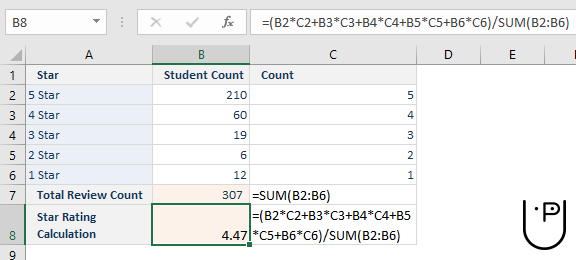
5 star rating given by 210 students, 4 star rating by 60 students…(see below screenshot2)

Weighted Average of Overall student rating is =210*5+60*4+19*3+6*2+12*1 = 4.47

Screenshot1

 

Screenshot2
Hope you have learned something new today

Regards,

Team Excelytics


0 Dislike
Follow 0

Please Enter a comment

Submit

Other Lessons for You

Excel-Select All Data/Columns/Rows with One Click
You might know how to select all by using the Ctrl + A shortcut, but few know that with only one click of the corner button, all data/Columns/Rows will be selected in seconds.

5 Tips For Improving Your Documentation Immediately.
Tip 1) Quit it with the Passive Voice The passive voice is a plague on effective documentation. It reduces its clarity, its consistency, and the efficiency and tightness of the writing. The passive voice...

Hidden Gems of MS Excel - New Window
You are working on 2 Worksheets in Same Workbook. To complete Your task, You have to frequently navigate between the Worksheets.Understandably, to frequently navigate between the Worksheets is inconvenient,...

Excel Tip: VLOOKUP formula limitations
1. Vlookup is not case-sensitive 2. If Lookup value has duplicates in the lookup column, then it returns 1st found value 3. Vlookup cannot pull values which are on the left side from Lookup column 4....

TODAY WE LEARN MAX FORMULA, HOW TO USE IT.
1 A B 2 NAME SERIES 3 Vinita 50 4 Vimlesh 34 5 Karina 73 6 Kartrina 18 7 Salman 65 8 Gold 48 =MAX(C3:C8) ANSWER- 73 =MAX(NUMBER 1, NUMBER 2)
X

Looking for Microsoft Excel Training Classes?

The best tutors for Microsoft Excel Training Classes are on UrbanPro

  • Select the best Tutor
  • Book & Attend a Free Demo
  • Pay and start Learning

Learn Microsoft Excel Training with the Best Tutors

The best Tutors for Microsoft Excel Training Classes are on UrbanPro

This website uses cookies

We use cookies to improve user experience. Choose what cookies you allow us to use. You can read more about our Cookie Policy in our Privacy Policy

Accept All
Decline All

UrbanPro.com is India's largest network of most trusted tutors and institutes. Over 55 lakh students rely on UrbanPro.com, to fulfill their learning requirements across 1,000+ categories. Using UrbanPro.com, parents, and students can compare multiple Tutors and Institutes and choose the one that best suits their requirements. More than 7.5 lakh verified Tutors and Institutes are helping millions of students every day and growing their tutoring business on UrbanPro.com. Whether you are looking for a tutor to learn mathematics, a German language trainer to brush up your German language skills or an institute to upgrade your IT skills, we have got the best selection of Tutors and Training Institutes for you. Read more